Manage Recipients in Your Campaigns
Last updated: June 15, 2026
Step 1: Open the Campaigns Tab
Go to the Campaigns tab in your account. Find the campaign you want to update and click Edit Campaign.
Step 2: Switch to Manual Management
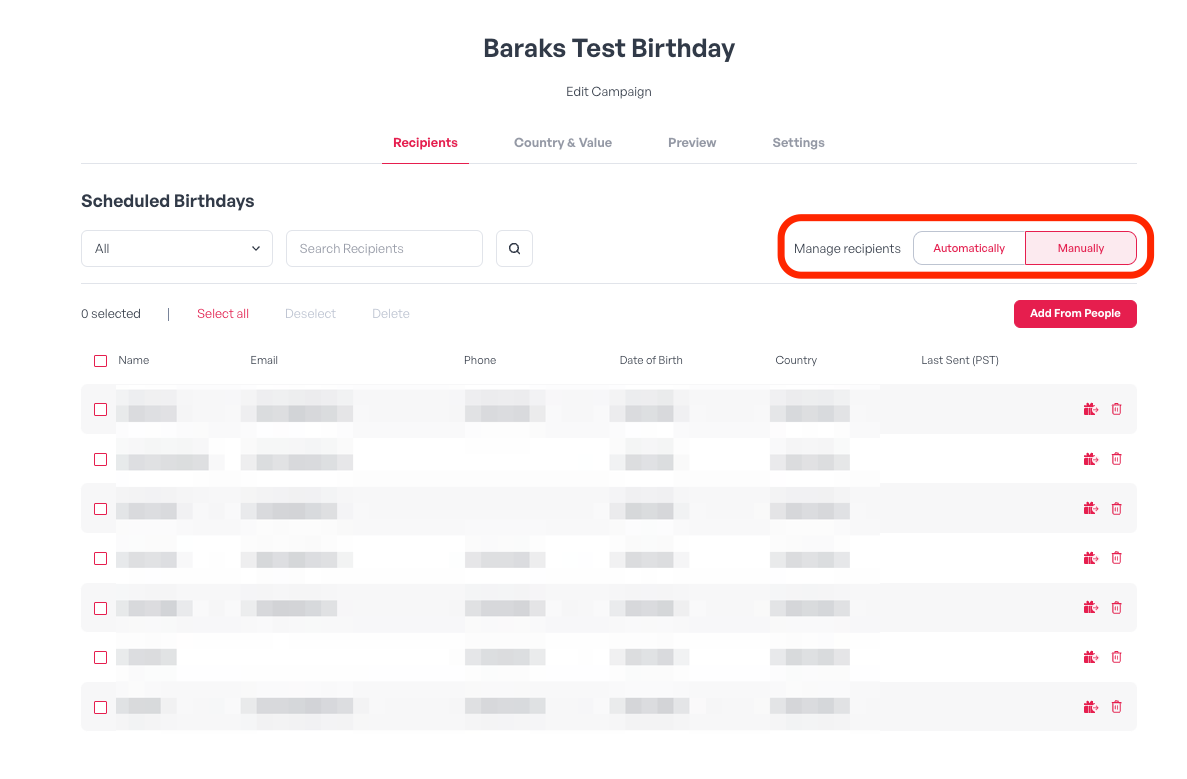
In the Recipients section, toggle Manage Recipients to Manually. This lets you add or remove employees for the campaign.
Step 3: Add or Remove Employees
Remove employees directly from the list as needed.
Use the Add From People button to add employees.
Please note:
Once set to Manually, recipients will not update automatically from the People tab.
To add employees to your campaign, first add them to the People tab, then add them to the campaign using the Add From People button.
You can only add employees linked to the campaign’s countries and audiences. To include others, first add their country under Country & Value, save, then return to edit the campaign.
Please note:
You can only add employees that are listed under the campaign's countries and audiences.
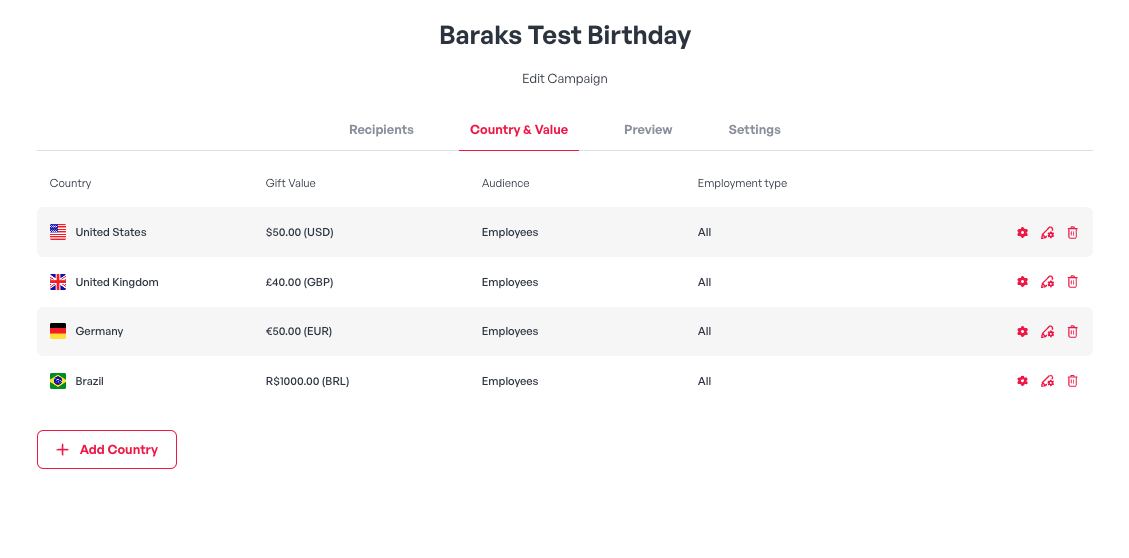
If you want to add employees from a different country or audience, you must add the country on the Country & Value section -> Save the new country -> Click again on the Edit Campaign -> Add the new employees from the Add From People button.
Now, you'll be able to handpick your recipients to create a list tailored to your needs.
Switch Back to Automatic Management
To return to automatic syncing, change Manage Recipients back to Automatically in the Recipients section.
Please note:
Switching back to automatic mode replaces your manual selections. The campaign will then pull recipients from the People tab based on your filters in Country & Value.